
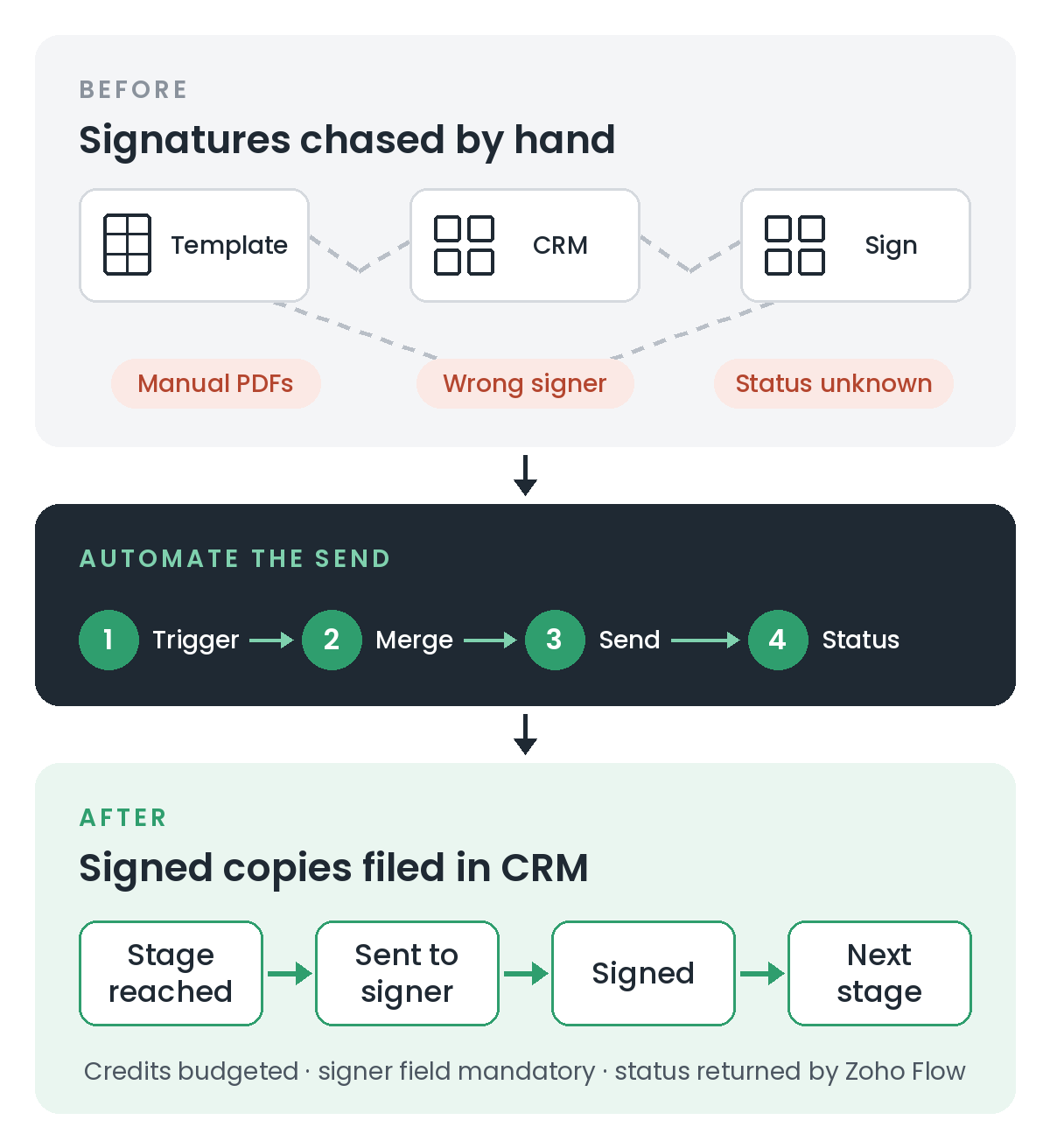
If every new customer has to sign the same set of documents, sending them by hand gets old quickly. Someone fills in a template, saves a PDF, uploads it to the e-signature tool, adds the signer, and then checks back later to see whether it's been signed.
Zoho CRM and Zoho Sign can do all of that automatically. When a record reaches a certain stage, a workflow merges the customer's details into a template and sends it for signature. I've recently built this for a client's onboarding process, and it works well. But four things caught us out along the way, and they catch most people out.
1. Automated sends cost credits
Sending a document by hand from the Zoho Sign extension is covered by your Zoho Sign or Zoho One licence. Sending one automatically is different. Zoho's pricing page says that "envelopes sent via API or third-party apps always consume Zoho Sign credits irrespective of your subscription plan" (Zoho Sign pricing). Automations across Zoho apps use any complimentary credits first, then paid ones. Each signature request sent through the API uses 5 credits (Zoho Sign API quick start).
On our project, the complimentary credits ran out during testing, before a single real customer had signed.
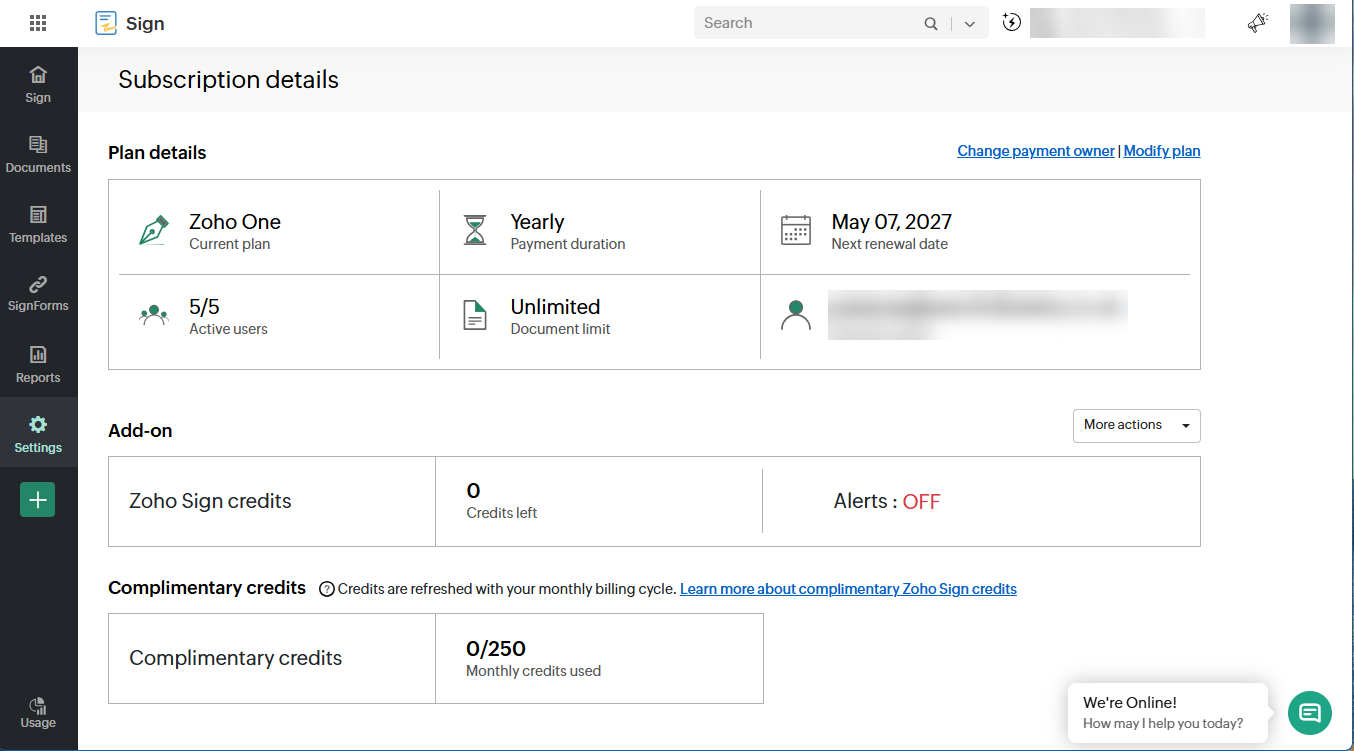
Zoho Sign shows paid and complimentary credits separately. Turn alerts on before you automate.What to do:
- Agree the ongoing cost with whoever pays for Zoho before go-live, as a cost per document. It's small, but it isn't zero, and it grows with the business.
- Switch on auto reload and check the usage history under Subscription Details in Zoho Sign (Zoho Sign help), so the workflow never stops because credits ran out.
- Do the heavy testing in Zoho Sign's developer sandbox, which doesn't use credits (Zoho Sign sandbox).
2. The template has to be set up for signing
Zoho CRM has an API action called Sign Mail Merge that merges a record into a template and sends it for signature in one step. Two set-up details matter:
- Open "Merge and Sign" in Zoho Writer once. Zoho's documentation says you must do this once from the Writer interface before the API will work (Zoho CRM Sign Mail Merge API).
- Reference the template exactly. The action looks the template up by name. A wrong or changed name returns an "invalid data" error. If someone renames the template later, the workflow breaks quietly, so lock the name down and note it in your system documentation.
3. Make sure the right person is the signer
By default, the signer's name and email are taken from the template's merge fields. You can override them in the request.
That sounds simple until the workflow runs on an Account. Companies don't sign documents; people do. In our case, the account record had no email address of its own, while the person who needed to sign sat in the account's related Contacts list. The send failed until we picked up that contact and passed them in as the signer.
What to do: decide which record holds the signer, usually the primary contact, and make that field mandatory before the workflow can fire. If several people need to sign or approve, list them explicitly and set the signing order.
4. Signed status doesn't come back on its own
When you send from the "Send for Zoho Sign" button, the extension records the document in a ZohoSign Documents module in CRM and tracks its status. But Zoho's help notes that "only documents sent directly from Zoho CRM can be tracked here" (Zoho Sign help).
For documents sent from a custom function, Zoho's own partner guidance is to add code that creates the ZohoSign Documents record yourself, then use Zoho Flow to update it when the document is signed, "as there is no valid trigger point for this action" in Sign or CRM (Zoho partner solution). We found the same: creating that record manually without the status link meant nothing updated when the customer signed.
What to do: plan the return journey from the start.
- Record the Sign document ID on a CRM record when you send it.
- Use Zoho Flow to update the status when the document is completed.
- Add a CRM workflow on that status that moves the customer to the next stage and attaches the signed copy. Zoho publishes a worked example of attaching signed documents.
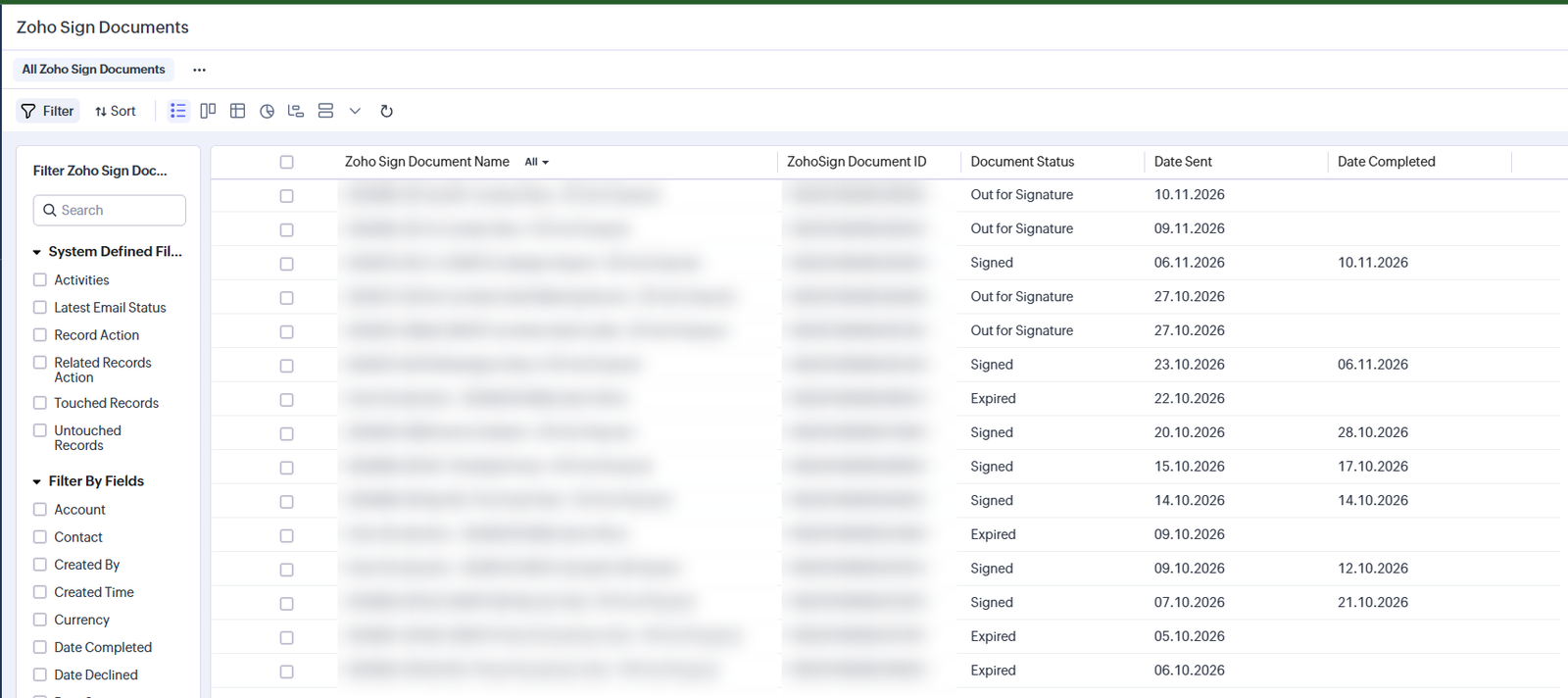
Each automated send tracked in Zoho CRM, from out for signature to signed.What to take from this
Before you automate signatures from Zoho CRM, check:
- Who pays for Zoho Sign credits, and is auto reload on?
- Is the template set up for Merge and Sign, and is its name locked down?
- Which record holds the signer, and is that field always filled in?
- How does "signed" get back into CRM, and what happens next?
With those four answered, the automation is reliable, and your team only has to look at documents that need attention.
This is a recent project, and the final go-live steps are still being completed.
Need a hand?
If your team still prepares and chases signature documents by hand, I can help you design the workflow so it runs on its own, from template to signed copy. Book a free 30-minute introduction, or see how I approach workflow automation.
Related reading: Case Study: Standardising Health and Safety Documents with Zoho CRM and AI