
Sales works in Zoho CRM. Support works in Zoho Desk. Switch on the built-in integration and a lot starts working straight away: your sales team can see a customer's open tickets without leaving CRM, and support can see who the customer is.
But the integration is narrower than most people expect, and the gaps usually show up after go-live. A repair request that should have become a deal. A reseller who can't see the tickets they raised for their customers. A contact that never synced because it had no email address.
Here's what the standard integration covers, what it leaves out, and how I fill each gap. It draws on Zoho's own documentation and on support workflows I've built for clients, including a partner portal for a technology reseller.
First, what the integration does
According to Zoho's integration FAQ, the integration:
Syncs Accounts, Contacts and Products, including custom fields, either one way (CRM to Desk) or both ways.
Shows Desk tickets in related lists inside CRM, on records such as leads, contacts, deals and accounts. CRM users who are also Desk users can reply and add comments from there.
Lets you link a ticket to a deal by hand, so support can prioritise tickets tied to open sales (Zoho CRM help).
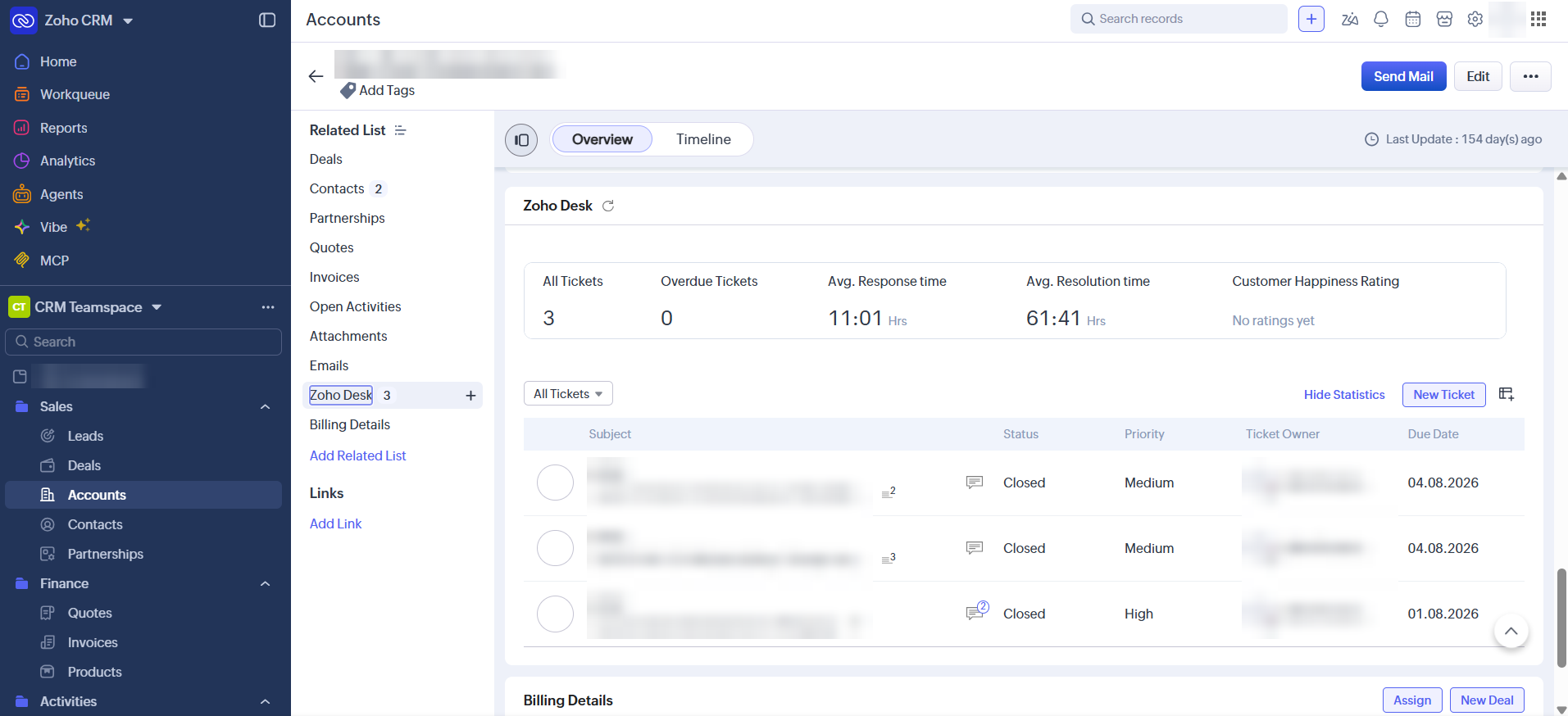
Desk tickets appear on the customer's account in Zoho CRM. A deal only shows the tickets someone has linked to it by hand.
It's available on every paid edition of Zoho CRM. If all you need is for sales to see open tickets before they call a customer, that may be enough.
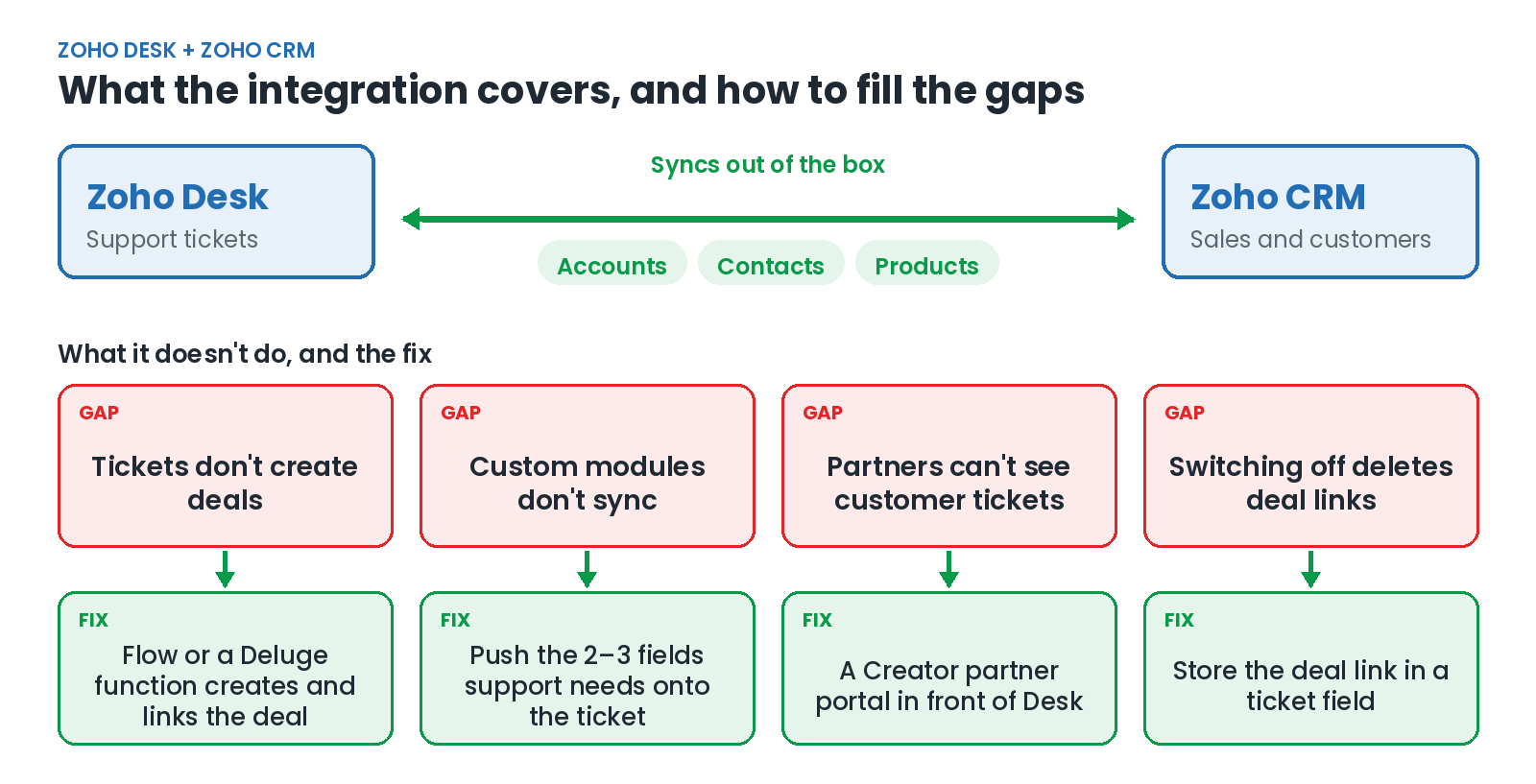
1. Tickets don't create deals
Deals aren't synced. A ticket can be linked to a deal, but only manually. If a support request is also a sale (a repair, a replacement part, an upgrade), someone has to create the deal and link it, every time.
How to fill it: use Zoho Flow, or a Zoho Desk workflow with a Deluge function (Zoho's own scripting language). When a ticket is created in a specific department or category, find the CRM contact, create the deal, then write the deal's link back into a custom field on the ticket. Add a "Deal created" check so the same ticket can never create two deals.
2. Only three modules sync
You can't choose a custom module when you set up the integration. Zoho says Enterprise and Ultimate customers can ask its support team for a custom-function solution (Zoho FAQ). So if your service history lives in a custom module, such as an asset or serial-number register, Desk won't see it.
How to fill it: decide which two or three fields support actually needs, such as the unit's serial number or its last repair date. Then push just those into custom fields on the Desk ticket or account with a CRM workflow and a small function. Don't try to mirror the whole module.
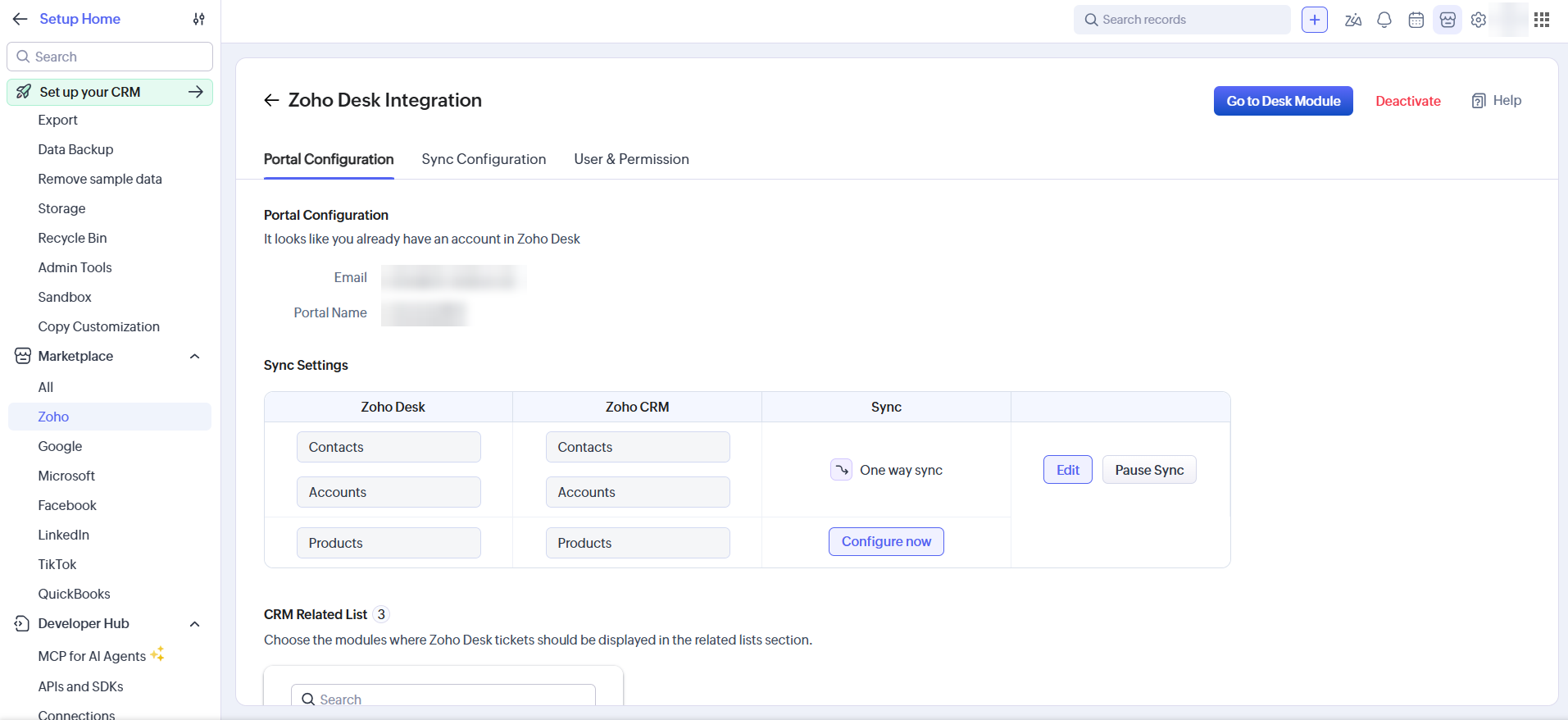
Only accounts, contacts and products sync. Deals and custom modules aren't on the list.
3. Product–customer links are off by default
Products sync as standalone records. Which customer owns which product isn't carried across, unless you choose two-way sync and tick "Also sync the product's customer (contact and account) associations" (Zoho Desk help).
How to fill it: if two-way sync suits you, switch the option on before the first sync. If you need CRM to stay the master (one-way sync), Zoho publishes a workaround: a CRM workflow and Deluge function that creates the same link in Desk through its API (Zoho solution article).
4. Matching depends on email addresses and account names
The integration matches contacts by email address and accounts by account name (Zoho FAQ). A contact with no email can't have a ticket raised for them from CRM (Zoho troubleshooting guide). And "Northbridge Ltd" and "Northbridge Limited" become two separate accounts.
How to fill it: clean the data before the first sync. Every contact who raises tickets needs an email address, and every customer needs one agreed account name. Afterwards, check the "Contacts Unmapped with CRM" and "Accounts Unmapped with CRM" views in Desk to catch stragglers (Zoho Desk help).
5. How do partners see tickets for their customers?
They can't, with the standard set-up. Zoho says the CRM client portal and the Desk help centre are independent of each other (Zoho FAQ). The help centre is built for customers following up their own tickets. If you work through resellers who raise tickets for several end customers, neither portal lets a partner choose from just their own customers.
How to fill it: this is what I built for a technology reseller. A Zoho Creator portal sits in front of Desk. The partner logs in and picks a customer from the list linked to them in CRM. The portal then creates the ticket in Desk. When the support team replies or changes the status, Desk sends a notification (a webhook) and the portal updates. As a fallback, the portal also fetches the latest when the partner opens a ticket. Only comments marked public reach the partner, and the support team keeps working in Desk as normal. I cover the wider scoping in what a partner portal should do.
6. Switching the integration off deletes deal links
If you ever deactivate the integration, "linking of deals with tickets will be permanently deleted" (Zoho FAQ). Instant sync can also pause, and contacts quietly stop syncing until someone resumes it (Zoho troubleshooting guide).
How to fill it: keep your own record of the link. The deal URL written into a custom ticket field (gap 1) survives a reconnection. And add the sync status page to a monthly check, alongside any other integrations you rely on.
When the standard integration is enough
If customers raise their own tickets by email, sales and support rarely overlap, and nobody needs a deal created from a ticket, use the integration as it is. Add custom work only where a gap costs your team time every week. The same rule applies to any Zoho connection, as with the Zoho Inventory and Xero integration.
If your support requests regularly turn into repairs, quotes or orders, the hand-off between Desk and CRM is usually the first thing worth automating. Book a free 30-minute introduction and we'll look at where your tickets and deals should meet, or see how I approach workflow automation.